Installed
Welcome to BugToPrompt
You're ready to report your first bug. Here's the quick start.
Quick start in 4 steps
Pin the extension
Click the puzzle icon in Chrome's toolbar and pin BugToPrompt so it's always one click away.
Capture the bug
Open the page with the problem, click the BugToPrompt icon and choose the visible page or a selected area.
Annotate and describe
Mark the problem with the rectangle, arrow, pen, text or highlighter. Add a title and what you expected. The technical details are filled in for you.
Copy the AI prompt
Open the AI Prompt tab, click Copy and paste it into ChatGPT, Claude, Cursor, Copilot or any other AI tool.
Shortcut keys
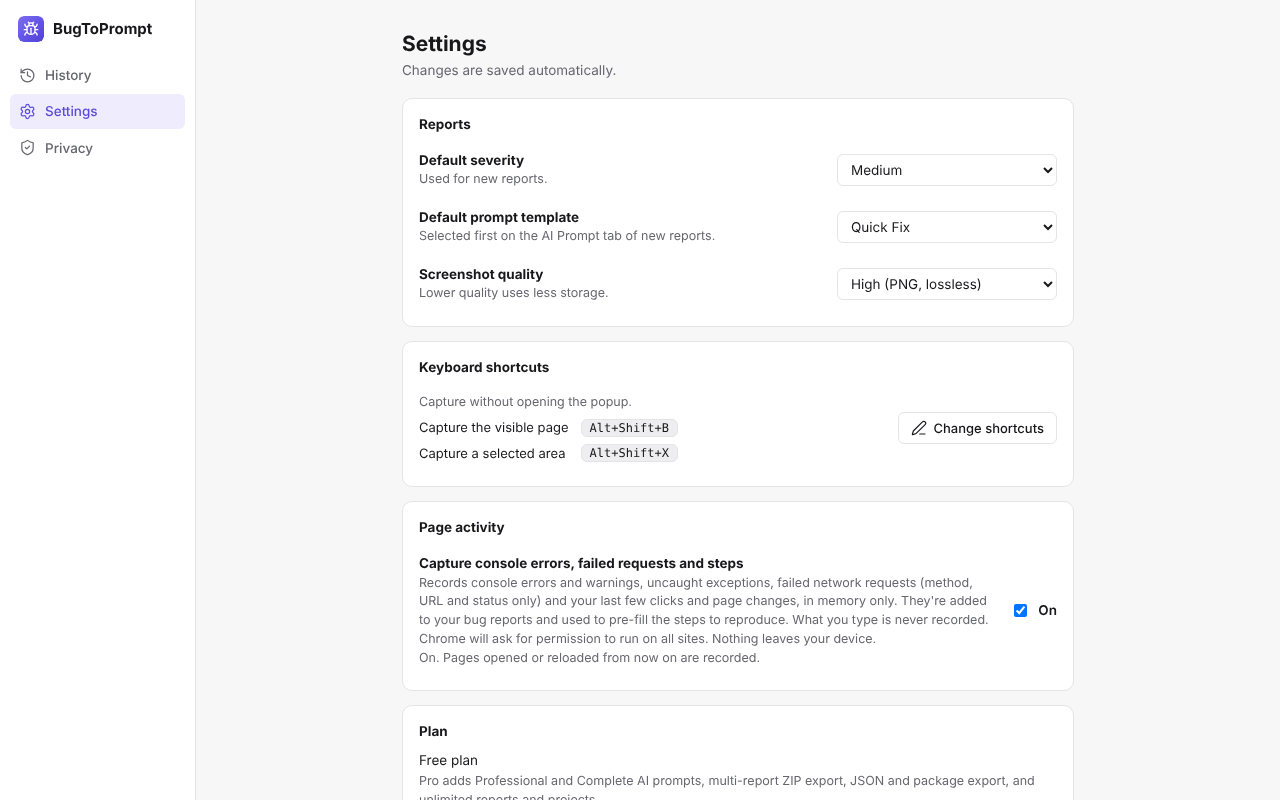
- Alt+Shift+B
- Capture the visible page
- Alt+Shift+X
- Capture a selected area
To change them, open BugToPrompt Settings and click Change shortcuts, or go to chrome://extensions/shortcuts.
Turn on page activity capture
It's off by default. To add console errors, failed requests and your steps to reports:
- Open BugToPrompt and go to Settings.
- Under Page activity, switch on "Capture console errors, failed requests and steps".
- Allow the permission Chrome asks for, then reload the page you're testing.
What you type is never recorded, and nothing leaves your device.
Want more? Go Pro
Professional Fix and Complete Technical Analysis prompts, JSON and ZIP exports, unlimited reports and projects. One payment of $4.99, yours for life.